Storyboard image gen with Claude and Firefly
Role: A human figuring it out
Case 01.- From plain text to video
Tools: Claude, Firefly



Step 1
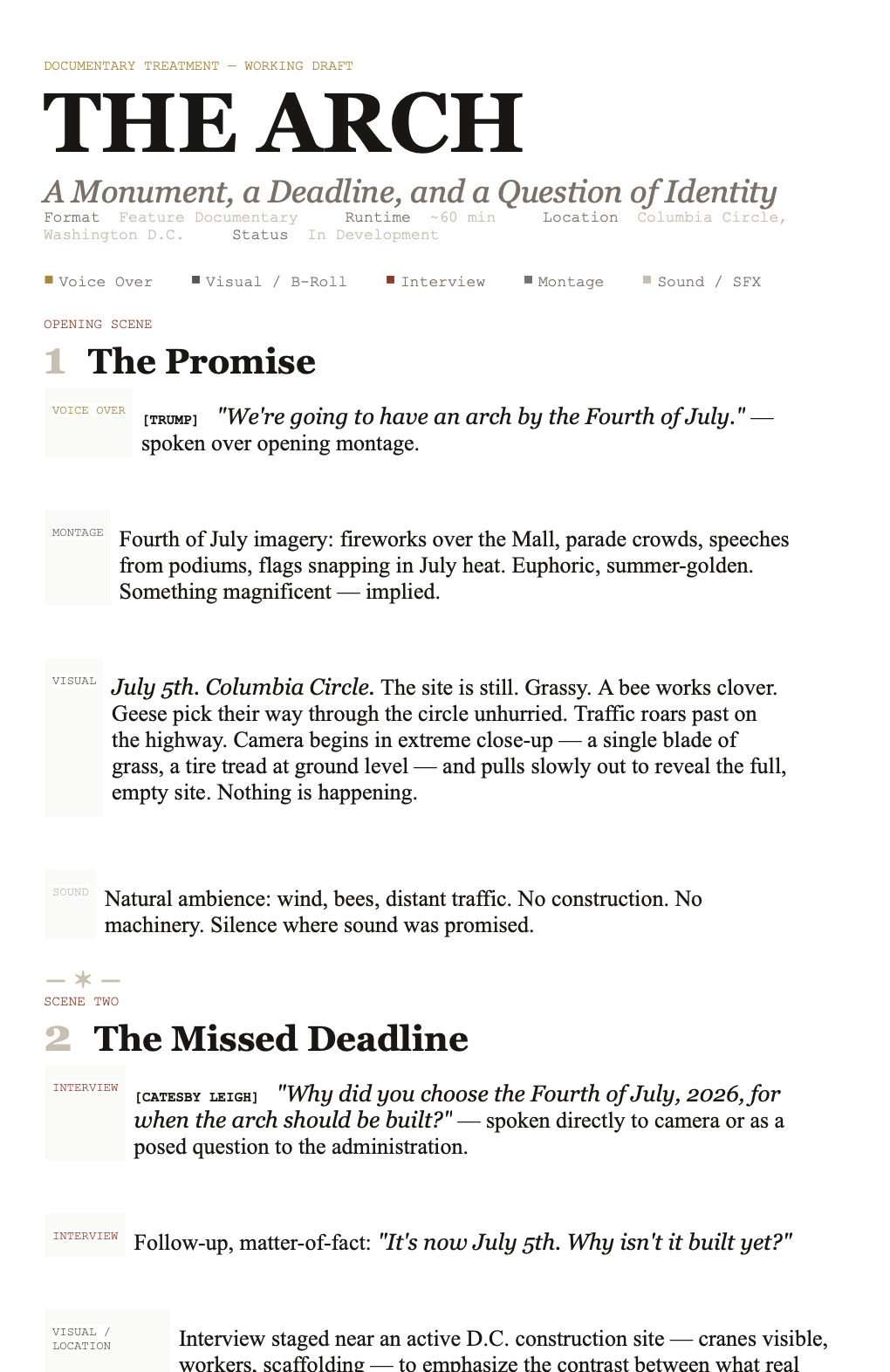
I received a storyline in plain-text format. After reviewing it, I prompted Claude to convert it into a stylized HTML treatment.
Each scene is broken down into shot-type blocks — Voice Over, Visual/B-Roll, Interview, Montage, Sound/SFX — with a brief description of the content for each.
From that HTML, I drafted the prompts used to generate video in Firefly.
Step 2
Prompt:
“Sequential camera pull-back: begin with car tire tread at ground level on wet asphalt, zoom out to reveal cars speeding past on a highway, then further to expose a vast empty green circle of land in Washington D.C., cinematic drone-style composition, overcast sky, photorealistic, 16:9”
Model: Veo 3.1
The Result: Video generation in Firefly.
Case 02.- From image to video
Tool: Firefly, Photoshop, Premiere Pro
Step 1
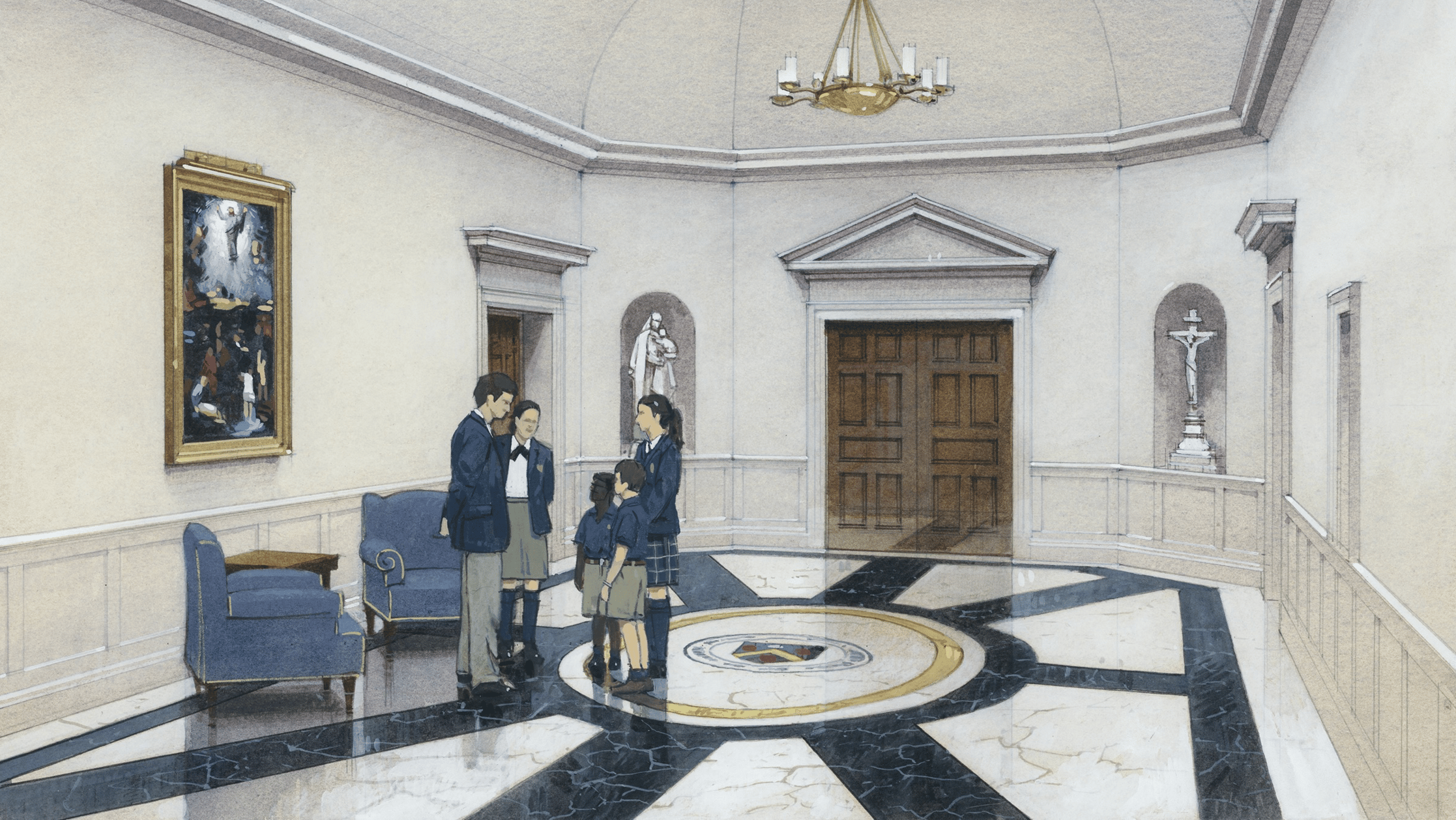
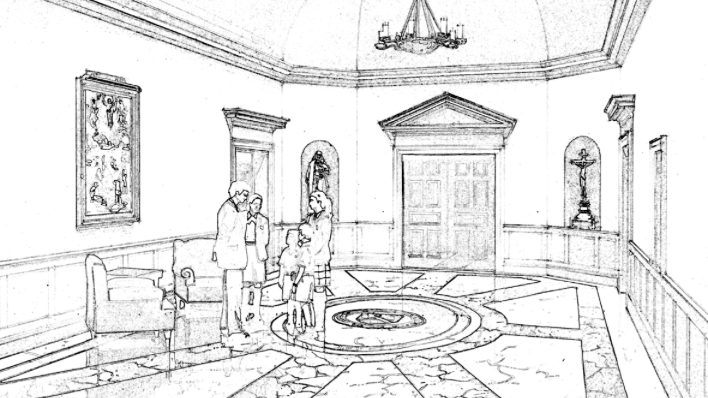
In Photoshop, I converted the original watercolor render into a black-and-white sketch-style image.
→
Step 2
Using both images as reference, I generated a "sketch coming to life" animation with the following prompt:
“A close-up of a watercolr painting coming to life as soft washes of paint bleed across the paper. The scene features figures that gradually emerge from the initial sketch, bringing them to vibrant detail. The background is a plain white sheet of paper, which contrasts with the colorful illustration. The lighting is soft and even, highlighting the texture of the paper and the vibrant hues of the watercolor. The camera remains steady, focusing on the evolving artwork from a close-up angle, emphasizing the meticulous process of watercolor painting. The overall style is clean and focused, with a slow-motion effect that enhances the fluidity and beauty of the painting process.”
Model: Ray3
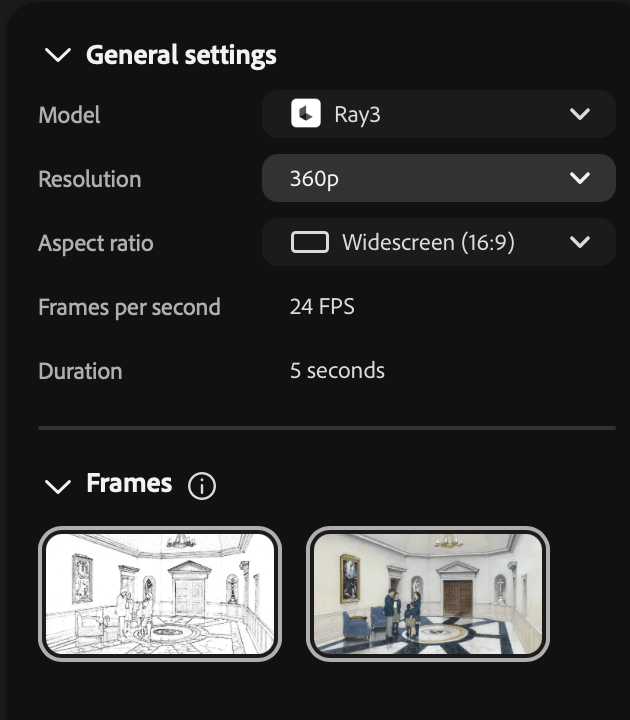
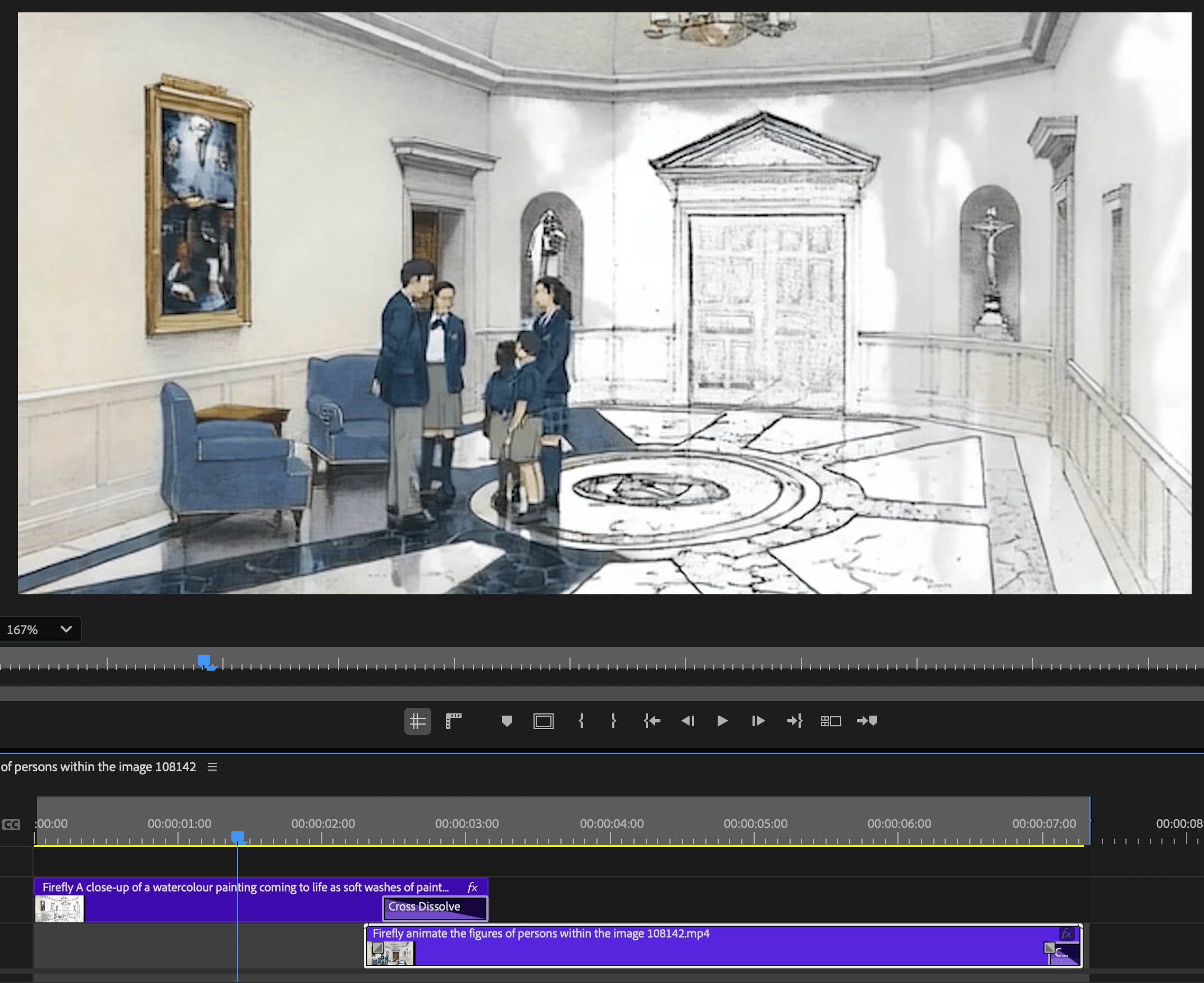
This produced an animated version of the sketch — the line drawing rendering itself into being.
Step 3
Separately, I took the original color watercolor illustration and prompted Firefly to animate the people within it.
Prompt: “Animate the figures of persons within the image”
Model: Firefly Video
This produced a second clip: the same room, in full color, with the figures in subtle motion.
Step 4
In Premiere Pro, I blended both clips together into a single seamless sequence — the sketch dissolving into the colored, animated scene.
Case 03.- Image gen from two reference images
Tool: Firefly, Photoshop
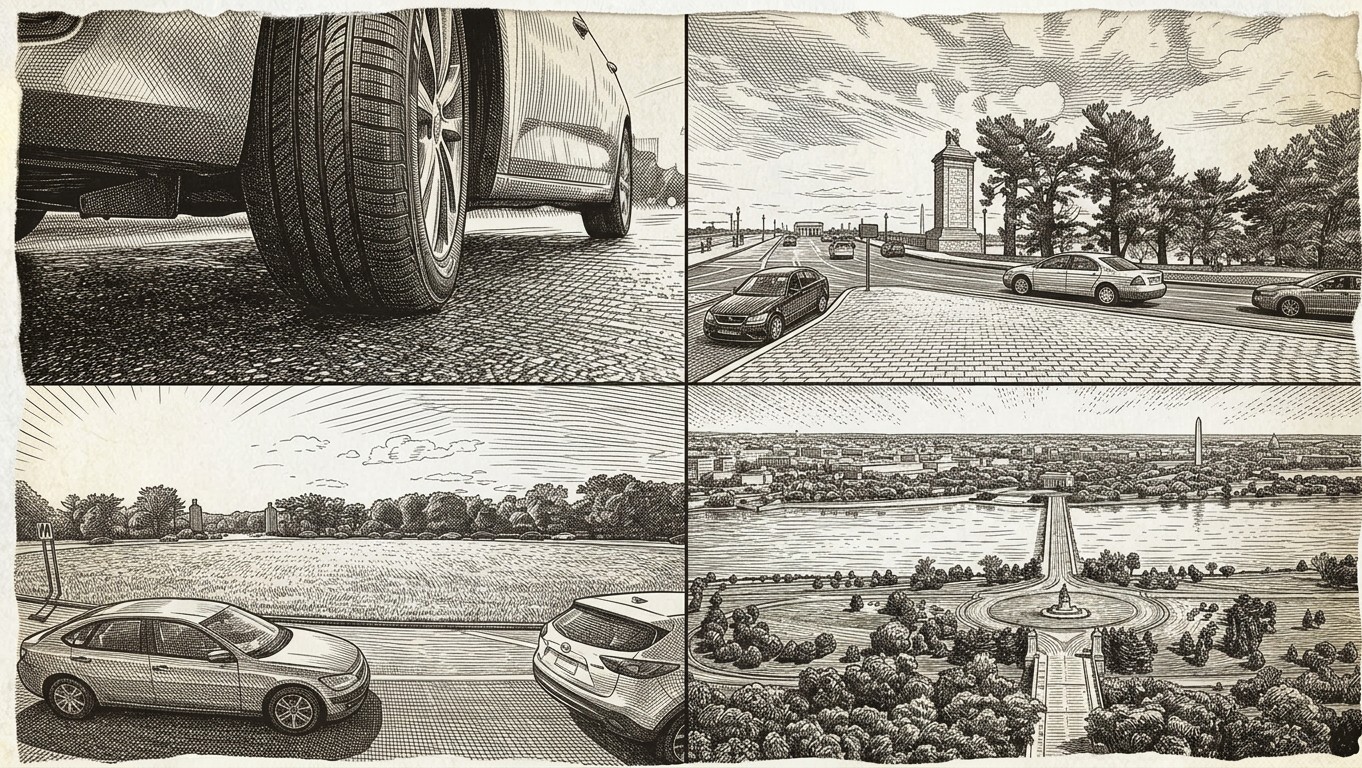
To keep the storyboard visually consistent, I built two reference images: one establishing the illustration style, and a second combining the specific source photos I needed (tire close-up, Google Maps screenshots) into a 4-panel composite in Photoshop. Firefly then generated the final image using reference 2, styled to match reference 1
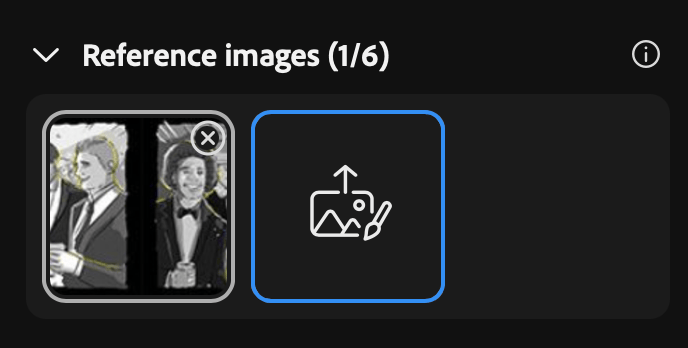
In General Settings, upload both images to the Reference Image slot.
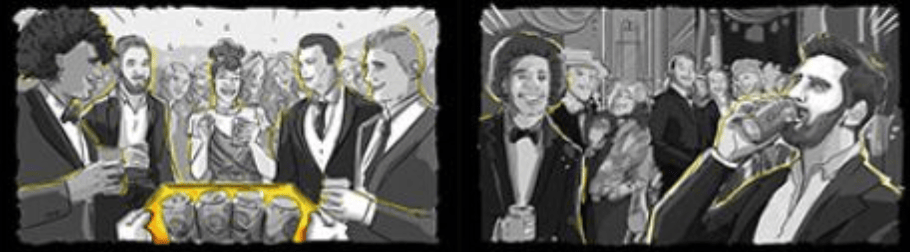
Upload as reference image 1
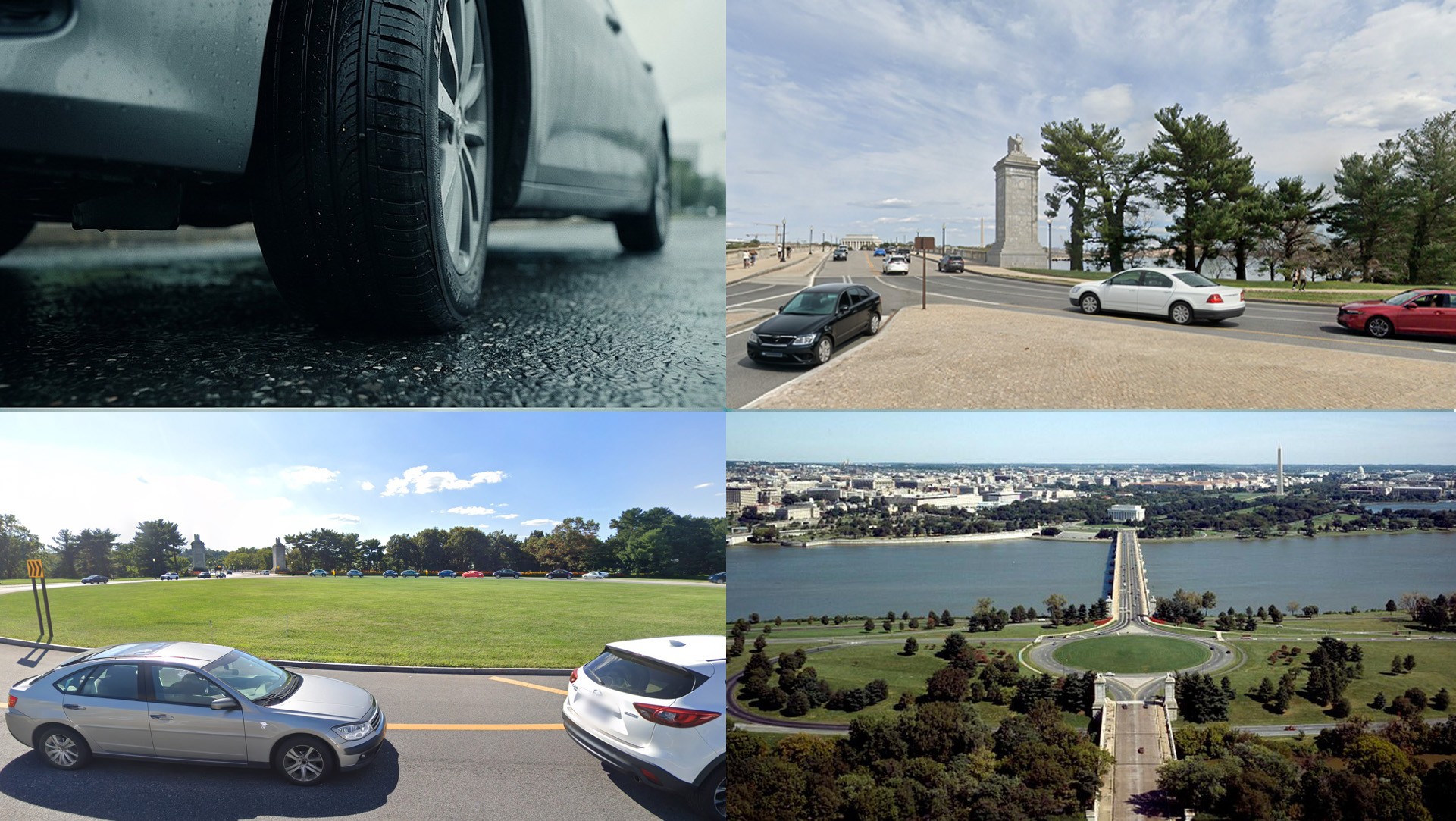
Upload as reference image 2
Prompt: Reference @image 2 in the illustration style of reference @image 1
Model: Gemini Flash
The result
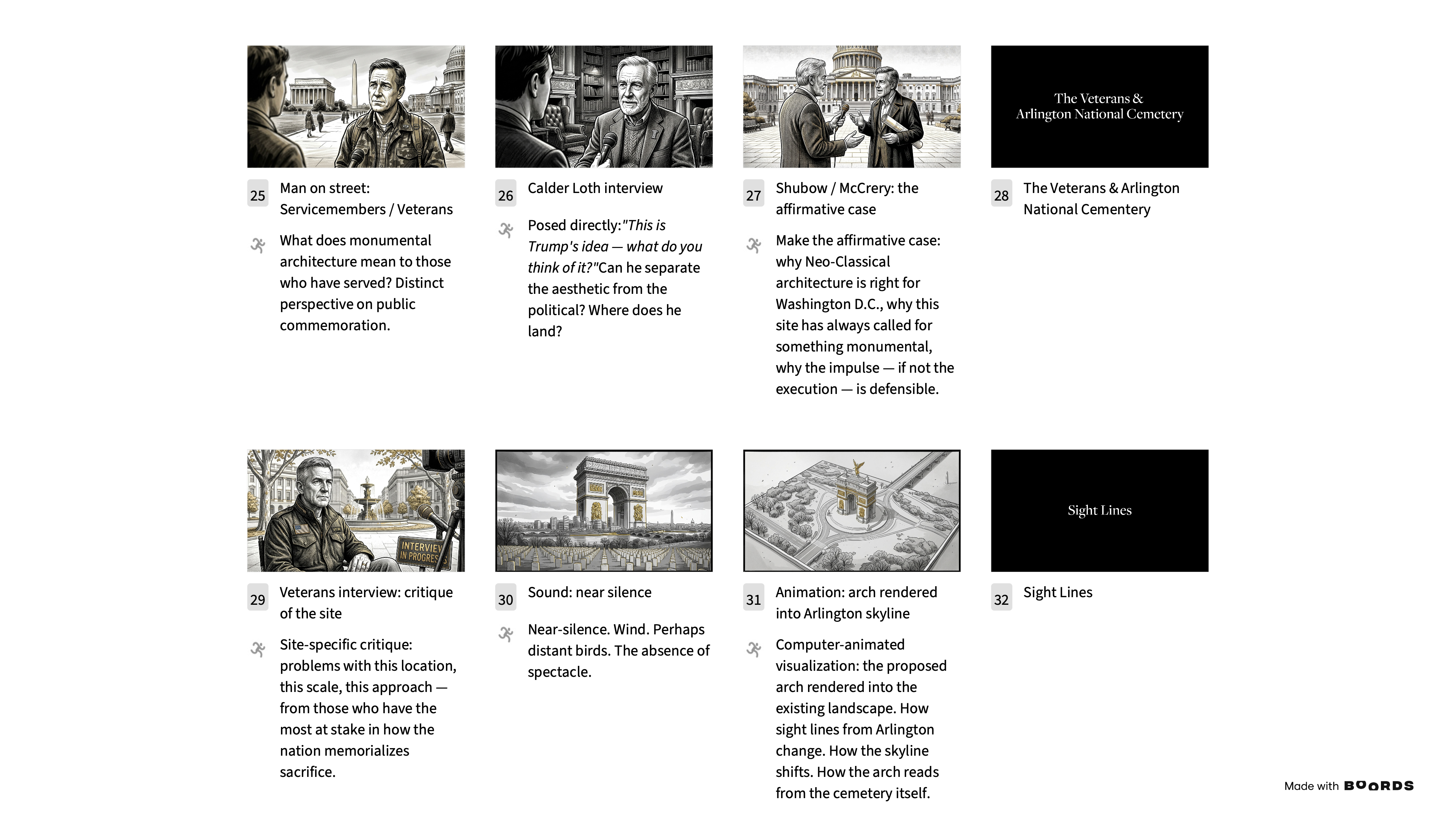
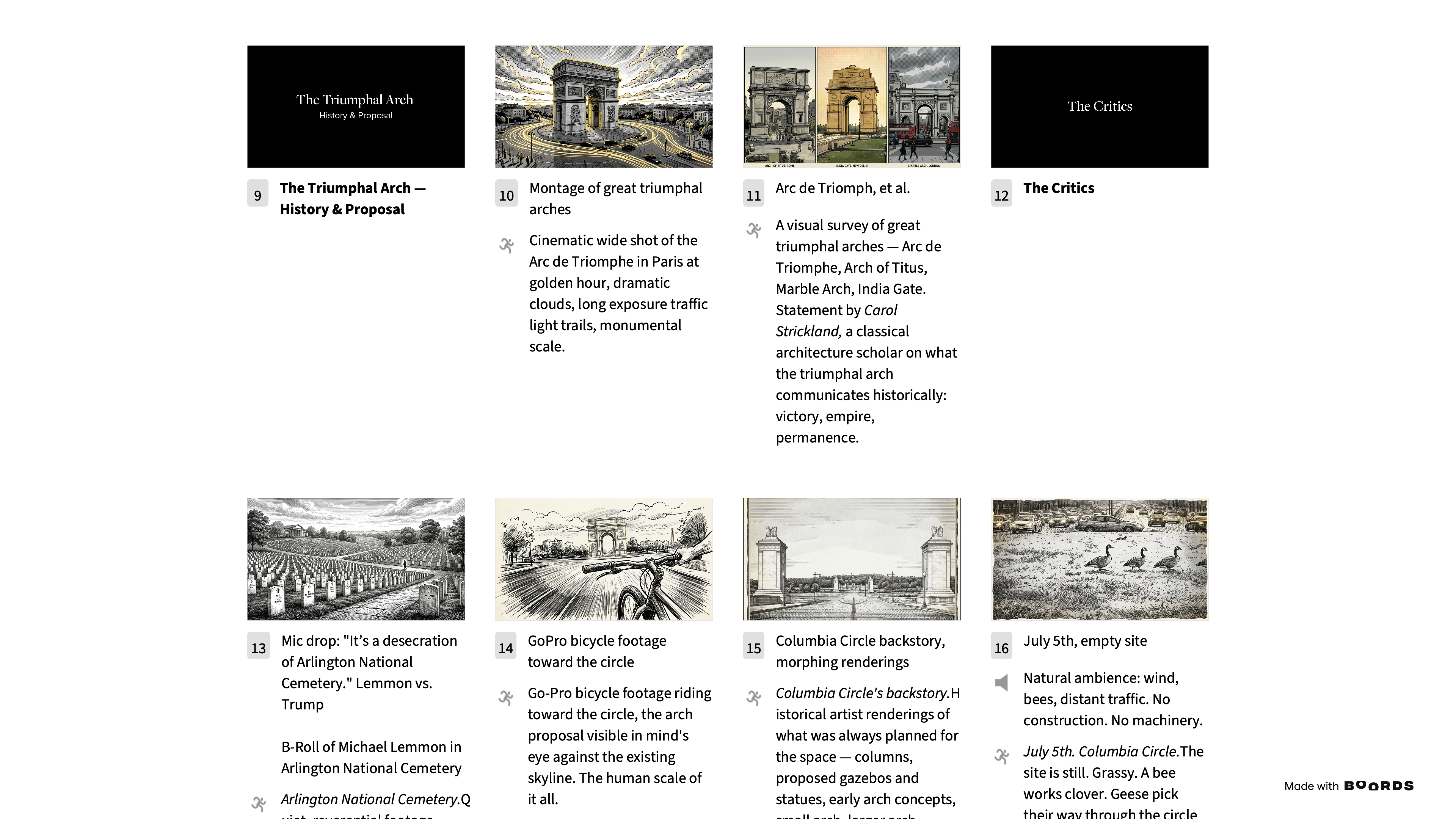
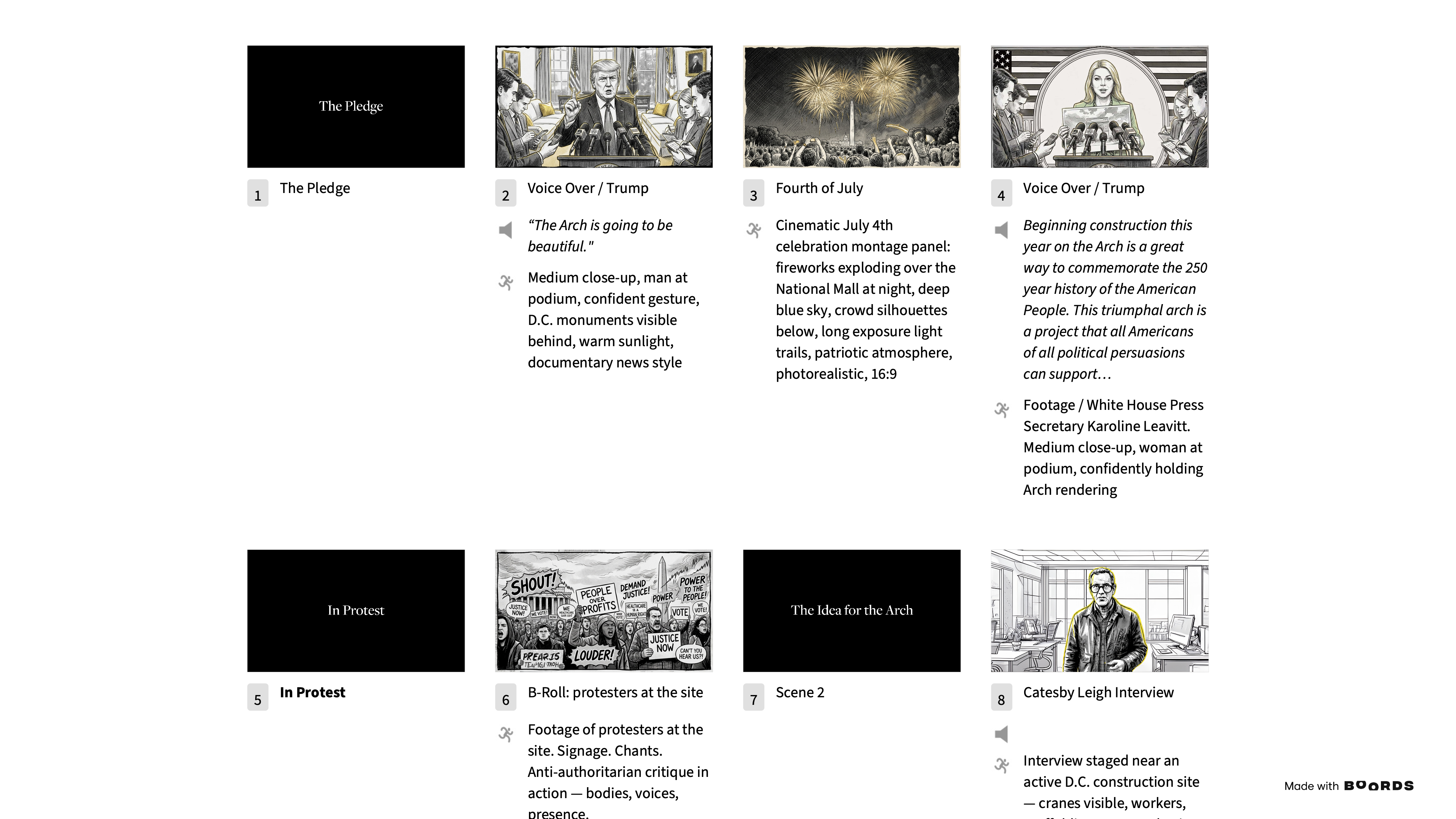
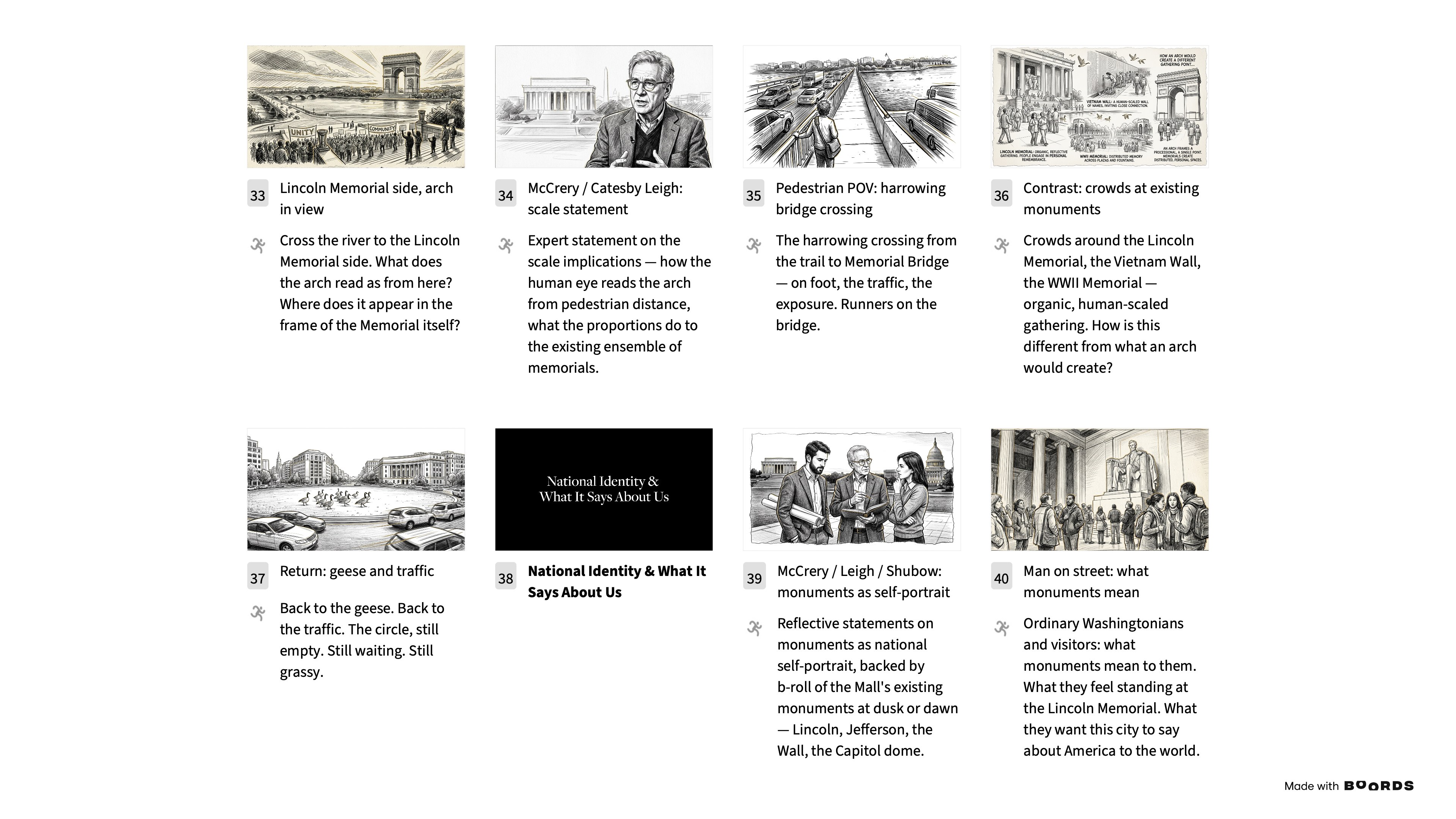
This process was repeated for the remaining storyboard scenes.
Storyboard image gen with Claude and Firefly
Role: A human figuring it out
Case 01.- From plain text to video
Tools: Claude, Firefly
→
Step 1
I received a storyline in plain-text format. After reviewing it, I prompted Claude to convert it into a stylized HTML treatment.
Each scene is broken down into shot-type blocks — Voice Over, Visual/B-Roll, Interview, Montage, Sound/SFX — with a brief description of the content for each.
From that HTML, I drafted the prompts used to generate video in Firefly.
Step 2
Prompt:
“Sequential camera pull-back: begin with car tire tread at ground level on wet asphalt, zoom out to reveal cars speeding past on a highway, then further to expose a vast empty green circle of land in Washington D.C., cinematic drone-style composition, overcast sky, photorealistic, 16:9”
Model: Veo 3.1
The Result: Video generation in Firefly.
Case 02.- From image to video
Tool: Firefly, Photoshop, Premiere Pro
Step 1
In Photoshop, I converted the original watercolor render into a black-and-white sketch-style image.
→
Step 2
Using both images as reference, I generated a "sketch coming to life" animation with the following prompt:
“A close-up of a watercolr painting coming to life as soft washes of paint bleed across the paper. The scene features figures that gradually emerge from the initial sketch, bringing them to vibrant detail. The background is a plain white sheet of paper, which contrasts with the colorful illustration. The lighting is soft and even, highlighting the texture of the paper and the vibrant hues of the watercolor. The camera remains steady, focusing on the evolving artwork from a close-up angle, emphasizing the meticulous process of watercolor painting. The overall style is clean and focused, with a slow-motion effect that enhances the fluidity and beauty of the painting process.”
Model: Ray3
This produced an animated version of the sketch — the line drawing rendering itself into being.
Step 3
Separately, I took the original color watercolor illustration and prompted Firefly to animate the people within it.
Prompt: “Animate the figures of persons within the image”
Model: Firefly Video
This produced a second clip: the same room, in full color, with the figures in subtle motion.
Step 4
In Premiere Pro, I blended both clips together into a single seamless sequence — the sketch dissolving into the colored, animated scene.
Case 03.- Image gen from two reference images
Tool: Firefly, Photoshop
To keep the storyboard visually consistent, I built two reference images: one establishing the illustration style, and a second combining the specific source photos I needed (tire close-up, Google Maps screenshots) into a 4-panel composite in Photoshop. Firefly then generated the final image using reference 2, styled to match reference 1
In General Settings, upload both images to the Reference Image slot.
Upload as reference image 1
Upload as reference image 2
Prompt: Reference @image 2 in the illustration style of reference @image 1
Model: Gemini Flash
The result
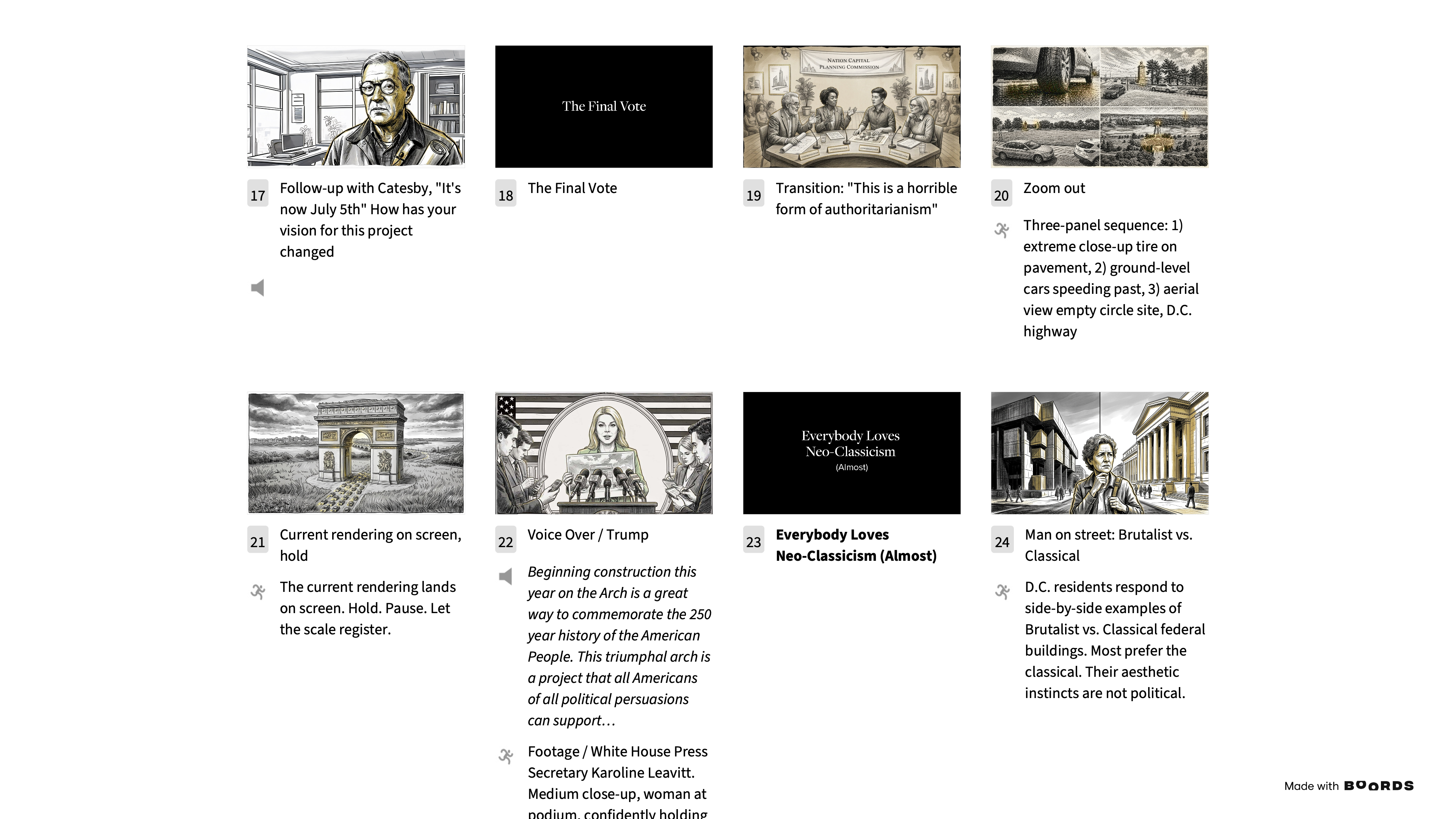
This process was repeated for the remaining storyboard scenes.
Storyboard image gen with Claude and Firefly
Role: A human figuring it out
Case 01.- From plain text to video
Tools: Claude, Firefly
→
Step 1
I received a storyline in plain-text format. After reviewing it, I prompted Claude to convert it into a stylized HTML treatment.
Each scene is broken down into shot-type blocks — Voice Over, Visual/B-Roll, Interview, Montage, Sound/SFX — with a brief description of the content for each.
From that HTML, I drafted the prompts used to generate video in Firefly.
Step 2
Prompt:
“Sequential camera pull-back: begin with car tire tread at ground level on wet asphalt, zoom out to reveal cars speeding past on a highway, then further to expose a vast empty green circle of land in Washington D.C., cinematic drone-style composition, overcast sky, photorealistic, 16:9”
Model: Veo 3.1
The Result: Video generation in Firefly.
Case 02.- From image to video
Tool: Firefly, Photoshop, Premiere Pro
Step 1
In Photoshop, I converted the original watercolor render into a black-and-white sketch-style image.
→
Step 2
Using both images as reference, I generated a "sketch coming to life" animation with the following prompt:
“A close-up of a watercolr painting coming to life as soft washes of paint bleed across the paper. The scene features figures that gradually emerge from the initial sketch, bringing them to vibrant detail. The background is a plain white sheet of paper, which contrasts with the colorful illustration. The lighting is soft and even, highlighting the texture of the paper and the vibrant hues of the watercolor. The camera remains steady, focusing on the evolving artwork from a close-up angle, emphasizing the meticulous process of watercolor painting. The overall style is clean and focused, with a slow-motion effect that enhances the fluidity and beauty of the painting process.”
Model: Ray3
This produced an animated version of the sketch — the line drawing rendering itself into being.
Step 3
Separately, I took the original color watercolor illustration and prompted Firefly to animate the people within it.
Prompt: “Animate the figures of persons within the image”
Model: Firefly Video
This produced a second clip: the same room, in full color, with the figures in subtle motion.
Step 4
In Premiere Pro, I blended both clips together into a single seamless sequence — the sketch dissolving into the colored, animated scene.
Case 03.- Image gen from two reference images
Tool: Firefly, Photoshop
To keep the storyboard visually consistent, I built two reference images: one establishing the illustration style, and a second combining the specific source photos I needed (tire close-up, Google Maps screenshots) into a 4-panel composite in Photoshop. Firefly then generated the final image using reference 2, styled to match reference 1
In General Settings, upload both images to the Reference Image slot.
Upload as reference image 1
Upload as reference image 2
Prompt: Reference @image 2 in the illustration style of reference @image 1
Model: Gemini Flash
The result
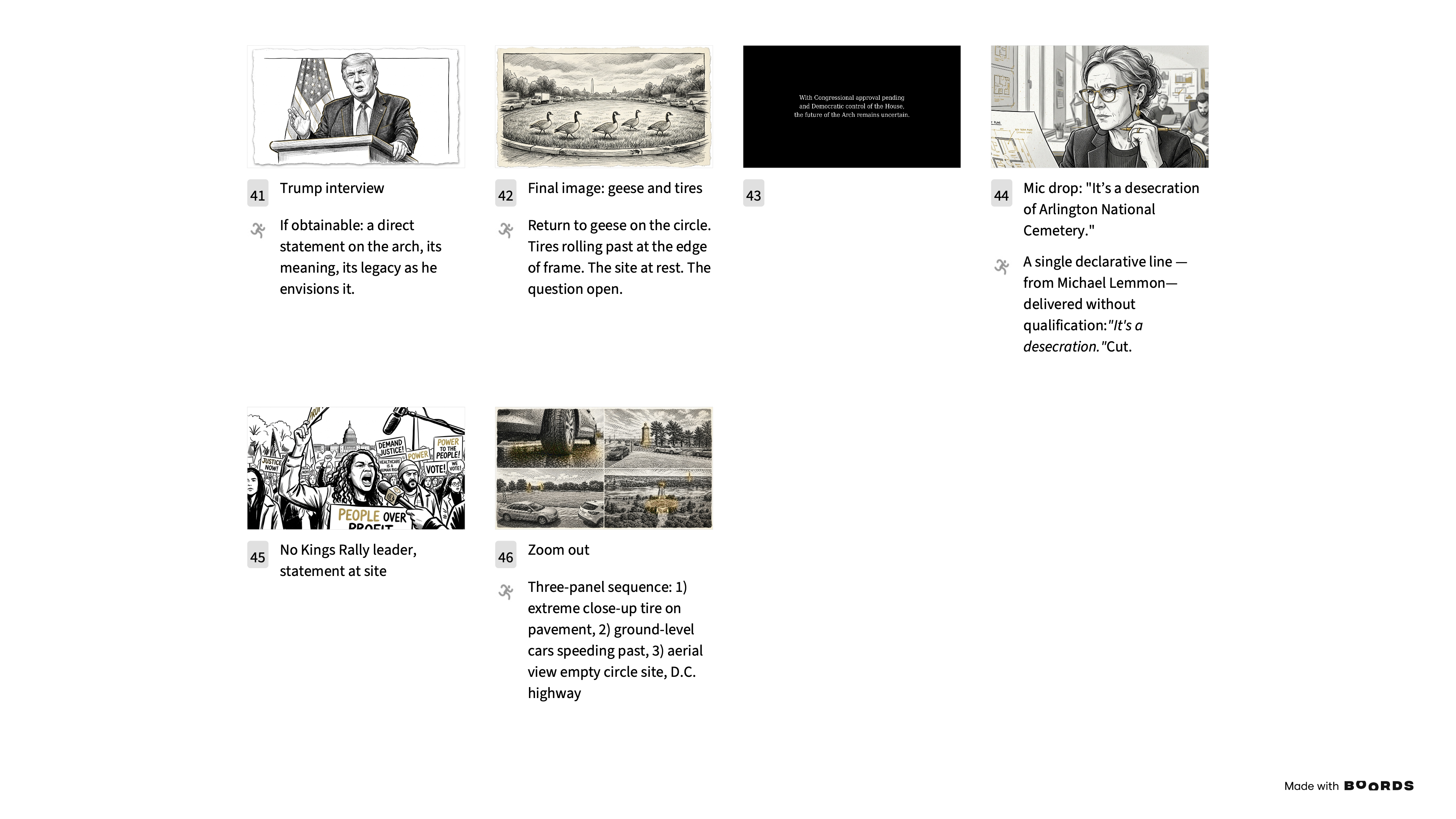
This process was repeated for the remaining storyboard scenes.